Notes
How to download and move notes
Learn how to configure Virex for your project. Covers build settings, environment variables, and deployment options.
Download a note
-
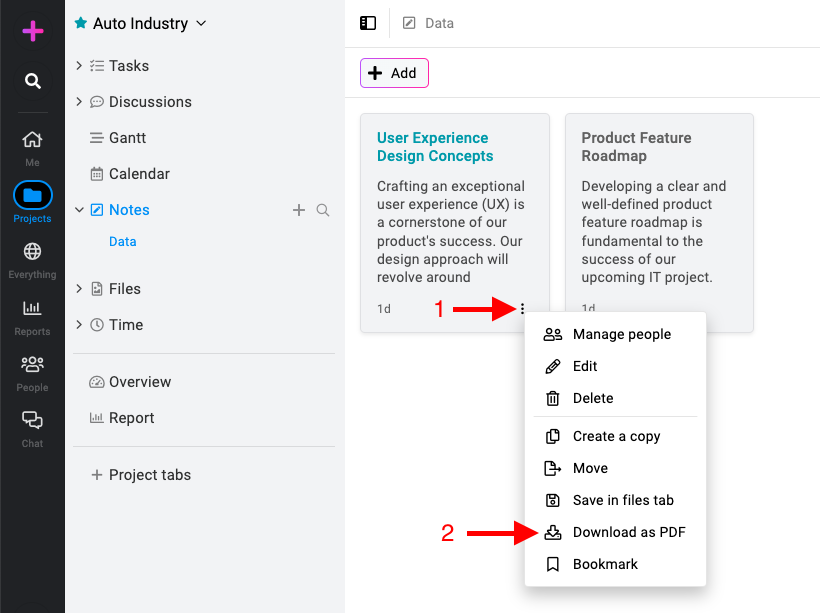
Access download options: Click on the three dots icon or right-click on the note and select “Download as PDF“.
Moving notes to files
-
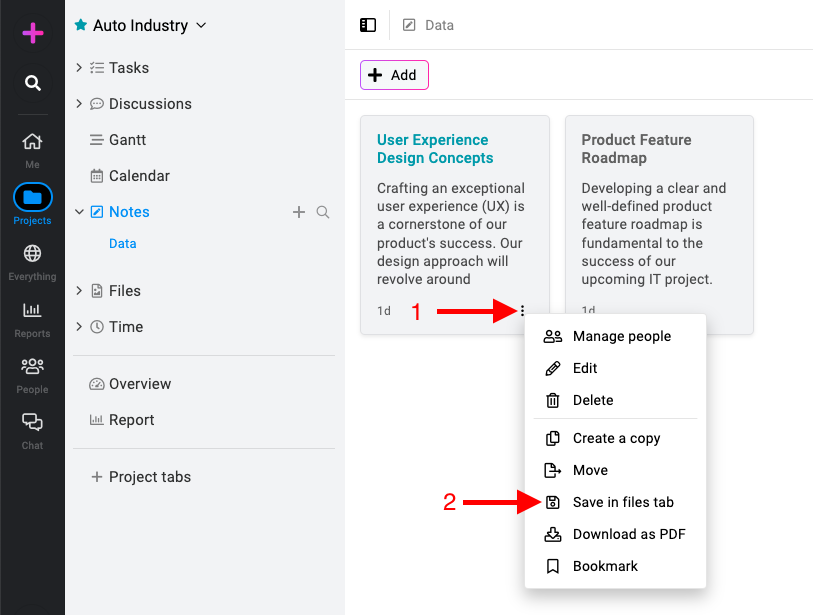
Save in files tab: Click on the three dots icon or right-click on the note and select “Save in files tab“.
-
Access the saved PDF: Go to the files section of the project where you saved the note. Look for the PDF file corresponding to your note.
Note: You won’t be prompted to download the PDF immediately. Instead, the note will be saved as a PDF file in the files section of the project, allowing you to access it later from there. This can be convenient for organizing and storing your notes within ProofHub.